Creating an Organization
In this section, you will get to know how to create a new organization in the platform with specific parameters and resource allocations. Only users with system administration privileges can create organizations.
You will also refer to the Quick Reference: Organization Types chapter to understand organization types in order to choose the right configuration for each client. The Understanding the Credits System chapter explains the overall credits system works in the platform and how credits are granted to a new organization (depending on the subscription tier).
To create an organization, do the following:
-
Login to the platform.
-
Click the System Panel and then click the Organizations sub-module.
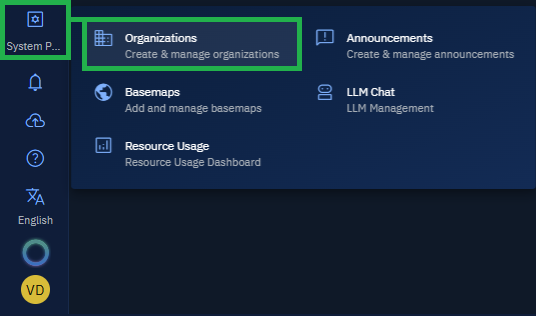
The Organizations page is displayed.
-
In the Organizations page, click the New Organization button.

The New Organization page is displayed.
-
In the New Organization page, do the following:
Basic Information
| Field name | Description | Action to take |
|---|---|---|
| Organization code | A unique identifier assigned to the organization. This code distinguishes it from others in the system. | Type a unique identifier for the organization. Can include numbers, alphabets, and special characters. |
| Organization name | The official name of the organization as it should appear in the system and shared resources. | Type the full name of the organization. |
| Type | Indicates the classification of the organization. | Select one: • Facilitator • Consumer • Reseller • Guest • Public |
| Entity | Specifies the legal or administrative entity the organization belongs to. | Select one: • Governmental • Commercial • Academic • Non-Profit See Quick Reference: Organization Types for more details. |
| License Type | Defines the license assigned to the organization and determines feature access and credit usage limits. | Select one: • Academic — For students in university or college • Professional — For professionals using geospatial data and analysis • Enterprise |
| Country | The country where the organization is registered or primarily operates. Used for compliance, billing, or regional rules. | Select the country where the organization is based. |
| The primary email address associated with the organization for notifications and admin communication. | Type the email of the contact responsible for the organization. |
Resource Information
| Field name | Description | Action to take |
|---|---|---|
| Max no. of users | Specifies the maximum number of users you can add to the organization. | Set the maximum number of allowed users. |
| Storage Quota | Defines the total amount of storage available for your organization. | Specify the storage allocation. |
| Credits | Represents the number of credits you can assign to the organization. | Assign initial credits to the organization. |
| Disable Credits | Allows a Super User to turn credit usage on or off. When enabled, features that require credits become available; when disabled, they can be used without consuming credits. | Toggle to allow or restrict organizations from using credits. |
Data Sharing
| Field name | Description | Action to take |
|---|---|---|
| Select Organizations to Share with | Choose one or more organizations that will receive access to the selected layer within your organization. Only the organizations you select will be able to view or use the shared content. | Search and select one or more organizations with whom you want to share your organization’s data. |

-
Click the Create Organization button to create the organization.

The new organization is successfully created in the platform.
When you're creating a new organization, establish a consistent naming convention for organization codes to make them easier to search and identify later.
Quick reference: Organization types
Understanding organization types helps you choose the right configuration for each client:
| Organization Type | Description | Key Capabilities |
|---|---|---|
| Facilitator | Has the highest level of administrative capabilities. Facilitators can manage other organizations, oversee resource allocation, and handle approval workflows. |
|
| Consumer | The standard organization type for end-users of the platform. Consumers have limited administrative powers but full access to assigned modules and services. |
|
| Reseller | An intermediate organization type between Facilitators and Consumers. Resellers typically manage multiple clients and distribute platform resources. |
|
| Guest | Designed for temporary or restricted access, often used in evaluations, demonstrations, or limited-scope projects. |
|
| Public | The most restricted organization type. No login is required, and access is limited to public data and open features. |
|
Understanding the credits system
Every new subscriber organization is granted an initial credit balance. Depending on your subscription tier, the credits in your account may vary. Credits function as the platform’s internal currency, enabling controlled, transparent access to compute-intensive or premium services.
Only users with the Manage Credits permission can:
-
View organizational credit balance
-
Initiate credit top-up requests
How credits work
Credits are automatically spent when users perform resource-intensive operations. Credits are consumed when users perform certain operations:
- Running analysis jobs
- Processing large datasets
- Using specialized AI features
- Storing data beyond the base quota
Here are a few scenarios:
| Scenario | Description | Credit Impact |
|---|---|---|
| Running object detection on large images | High computational load | High credit deduction |
| Uploading files to workspace | Minimal compute | Low or no credit usage |
| Purchasing high-resolution satellite imagery | External data cost | Credits deducted based on resolution/coverage |
| Using Auto Model Builder | Resource-intensive training jobs | Moderate to high depending on dataset size |